

As AI image generation skyrockets in popularity, many people are looking for easy ways to do it, such as how to use DALL-E 2 to generate AI images on your own computer. DALL-E (yes, named after WALL-E, as well as Salvador Dali) and its successor DALL-E 2 brought their own brand of AI image generation to the internet, developed by OpenAI, the creator of ChatGPT. but access to the software has been highly restricted.
That changed in the summer of 2022 with a limited public beta, and then several months later with the full beta release that’s now available for everyone to try. You can even try it out for free as part of Microsoft’s Bing Image Creator, which integrates it fully into Bing Chat.
How to use DALL-E 2
Step 1: Log in to OpenAI. If this is your first time, you will need to create an account to sign in, but it’s totally free. You also have the option of signing in via Google or Microsoft if you’d like to save some time. OpenAI will require some two-factor authentication, so have your phone handy when you start.

Step 2: With the sign-up complete, Open AI will introduce you to DALL-E 2. Select Continue to get started with the AI. OpenAI will then explain its credit process, or how you are able to use DALL-E 2 over time.
When you first sign up, you get 50 free credits to experiment with for your first month. Every month after that, you’ll receive an additional 15 credits to use. Each credit represents a single DALL-E 2 request, like generating an image, so that gives you an idea of how many tries you’ll get. You can buy additional credits at any time through OpenAI’s store: $15 will net you 115 credits to work with.

Step 3: On DALL-E 2’s home screen, you’ll see a few different options to get started. You can type in a description of your own, upload an image for the AI to edit based on your instructions, or choose Surprise me, which will auto-generate a description that’s designed to play well with the AI. Remember, you only have a limited number of credits, so plan carefully. For now, let’s assume that you’re going to type in a description with an eye on getting a specific result.
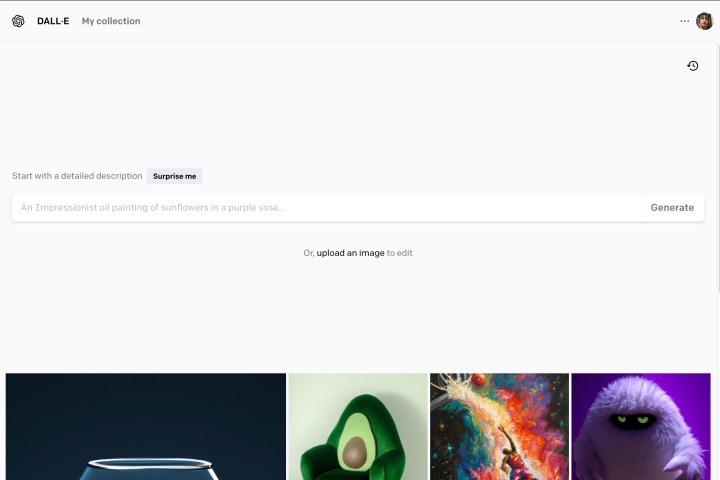
Step 4: Type your description. You have 400 characters to use, so take your time and be specific. DALL-E 2 plays well with artistic imagery, so don’t be afraid to ask for a painting, stained glass, digital art, or another specific medium that you want to try. Select Generate when you are ready.

Step 5: For each request, DALL-E 2 will generate several different images for you to pick from. Find one you like, and use the buttons in the upper-right corner to either favorite it for a later look or download it right now.
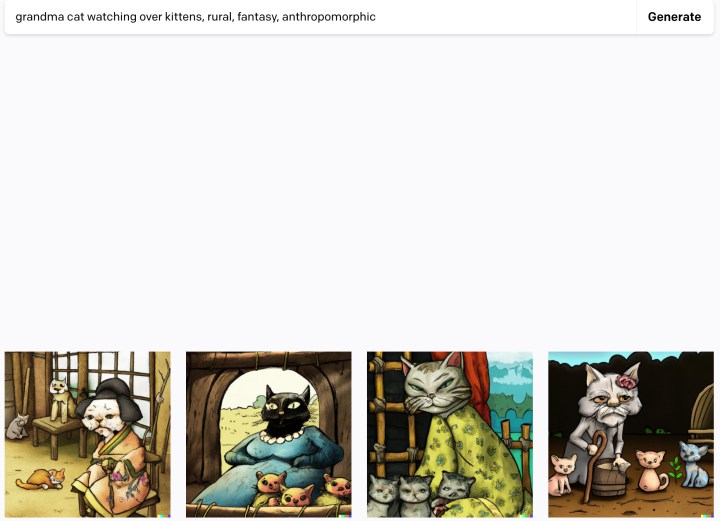
Step 6: If the image isn’t quite what you want, you can try selecting Variations, which will generate a new selection based on the image you chose. Or you could go back and try to tweak your phrase to get a different result.
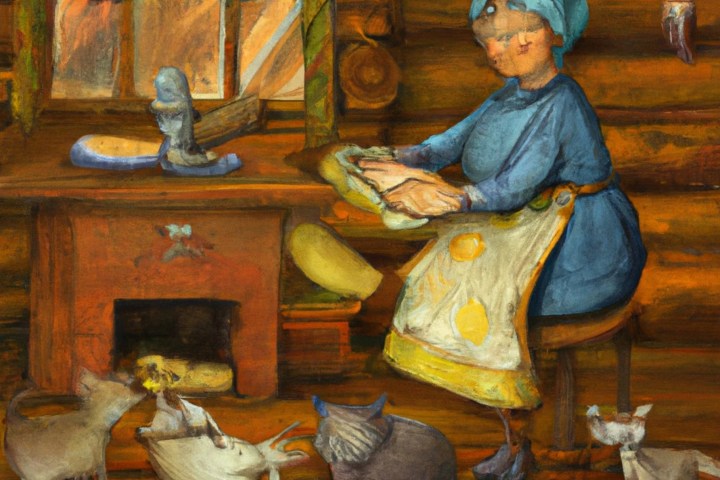
Step 7: Sometimes changing just one or two different words, or specifying a different medium, can make a lot of difference. Rethink how you want the image and try for something new if necessary. The results can be unexpected, but that’s half the fun.
Tips for using DALL-E 2
If you are serious about using DALL-E 2, such as for a school assignment or an art project, you may want to learn about the best ways to use it first — and save money on credits as a result. Fortunately, there’s already an excellent guide out there on Guy Parsons’ Dallery Gallery blog, released in 2022 for new users. It’s a bit long at 80-plus slides, but it will run you through the basics so you’re ready to generate just the sort of AI imagery that you want. Some important tips include:
Prompts don’t have to be long, they can be only a few words. Even more interesting, they can also be a series of emojis, which DALL-E 2 will try to interpret as accurately as possible (i.e. your eggplant emoji will be an actual photo of an eggplant).
When we mentioned that DALL-E 2 is artistically minded, we mean that AI has processed a lot of art. That means that certain tricks can yield interesting results. Mentioning a specific type of art will encourage DALL-E 2 to also draw inspiration from the time period when that style was in vogue, such as “surrealism.” Other examples include dieselpunk, post-apocalyptic, and cyberpunk. Or you could skip right to it and add something like “the 1950s” to your description to get a particular era.
DALL-E 2 also knows a lot about photos. Photographers shouldn’t hesitate to include specific views, angles, distances, lighting, and photography techniques (or even lenses) to see how DALL-E 2 will respond.
It’s technically against DALL-E 2’s policies for you to upload and use a prompt photo that you don’t have the rights to. If DALL-E 2 has processed a lot of other work from that particular painter, photographer, etc., then it may be able to create a piece inspired by them if you include their name in the description. That extends to all kinds of proper nouns, like popular cartoons or movies.
AI generators typically struggle with faces unless they have a very specific prompt. If the face in your image is just too weird for you, you can try again and add an additional description for the face, like the sort of expression you want, where the face is looking, etc.
If you are uploading an image, you can do a lot with cutting and pasting, whether you want to cut out a particular subject and place them in a new setting or remove unwanted objects from an image and remake it.
Editors’ Recommendations
-
How to use Bing Image Creator to generate AI images for free -
Bing Image Creator brings DALL-E AI-generated images to your browser -
ChatGPT: how to use the viral AI chatbot that everyone’s talking about -
GPT-4: how to use, new features, availability, and more -
Bing Chat: how to use Microsoft’s own version of ChatGPT
PowerPoint will use ChatGPT to create entire slideshows for you
Microsoft has revealed its thoughts on how artificial intelligence (AI) could shape how we work in the years to come — and how it plans to help guide those changes. The announcement was made by Microsoft’s Satya Nadella and Jared Spataro at a company event titled The Future of Work with AI.
As the name suggests, the show was focused on how artificial intelligence (AI) could affect how we work, both now and in the future. More specifically, the tech giant discussed how it will add AI smarts into its suite of Office apps.
Microsoft’s Bing Chat waitlist is gone — how to sign up now
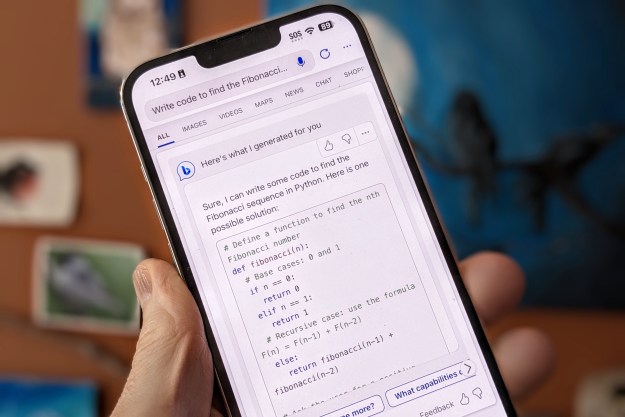
It appears Microsoft is doing away with the long Bing Chat waitlist. As originally reported by Windows Central, new users who sign up for the waitlist are immediately given access to the AI chatbot, without having to wait, and Digital Trends has confirmed this to be the case.
Microsoft hasn’t officially killed the waitlist, but it should go away in short order. On Tuesday, Microsoft bolstered OpenAI’s launch of the GPT-4 model by confirming that it was the model behind Bing Chat. Microsoft is also set to host an AI-focused event on Thursday, where we expect to hear about AI integrations in Microsoft’s Office apps like Word and PowerPoint. It’s possible Microsoft could remove the waitlist during the presentation.
ChatGPT vs. Bing Chat: which is the best AI chatbot?

Bing Chat and ChatGPT are two of the latest natural language chatbots to become widely available, and both are competing for your attention and text prompts. Both AIs are based on similar language models, but there are some distinct differences between them, making the ChatGPT versus Bing Chat debate one well worth having.
If you want to play around with these two exciting tools, here’s everything you need to know to pick the right one for you.
Read More
Tyler Lacoma