

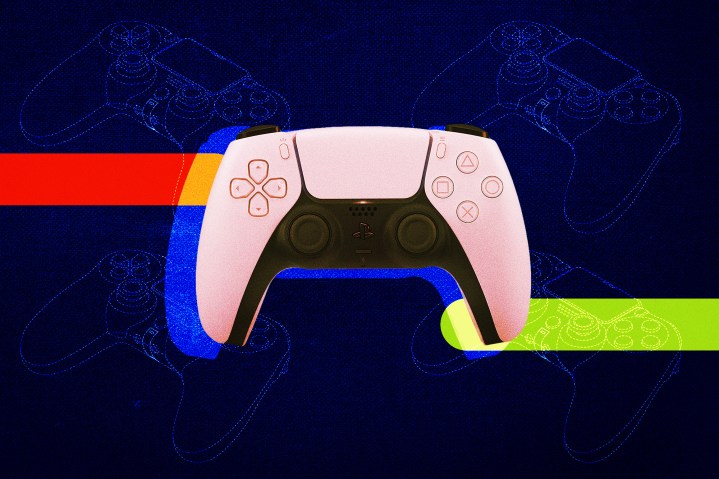
The PlayStation 5’s DualSense controller is one of the biggest leaps in controller design ever, adding advanced haptic feedback to Sony’s new console. For games that take full advantage of it, like Astro’s Playroom, the effect it has on the play experience can be truly game-changing. Like most other console controllers, the DualSense can also be used to play games on PC, though without the full benefit of features like variable-resistance triggers.
For those who want to get a little more mileage out of their DualSense, here’s how to connect the PS5 controller to a PC. While the good news is that the DualSense works just like any other controller on a PC, the bad news is that, well, the DualSense works just like any other controller. It may lack the PS5-specific features that make it such a standout when connected to a PC, but it’s also simple to set up and use, whether you want to connect using a USB cable or Bluetooth.
How to connect a PS5 controller to PC with USB
Connecting the PS5 controller to a PC with a USB cable will likely be the go-to option for most people, as it’s extremely easy to do and won’t run the risk of draining the DualSense’s battery during a play session. Just connect the DualSense to a USB-C to USB-A cable (like the one that comes with the PS5), and plug the other end into your PC. If your PC has a USB-C port, you can also use a regular USB-C cable. If you’re purchasing a new DualSense on its own, as opposed to using one that comes with the console, just be aware that it won’t come with its own cable.
How to connect a PS5 controller to PC with Bluetooth
If your computer has built-in Bluetooth capability or you have a separate Bluetooth adapter, you can also connect the DualSense wirelessly. The process is the same as connecting any wireless controller. Just hold the PS button and the Create button on the DualSense to start pairing. On your PC, navigate to the Bluetooth & Other Devices menu and click Add Bluetooth or other device, then select the Bluetooth option. When the connection is made, the PS5 controller will show up as Wireless Controller in the menu.
How to use a PS5 controller on PC with Steam
The major caveat to using a PS5 controller on PC is that not all games will recognize it natively. Fortunately, Valve added limited DualSense support to Steam almost as soon as the PS5 was released and is continuing to add features. All the Steam games with controller support are playable with the DualSense, and functions like motion controls, rumble, and the light bar should work just like they did for the PS4’s controller, though new features like adaptive triggers still aren’t working.
An update released shortly after the PS5’s launch made full DualSense support (which was at first only available in beta) available to all Steam users. However, if Steam doesn’t automatically recognize your controller, or if you just want to change its settings manually, you can still configure the controller yourself. To configure your DualSense with Steam, just open Steam with the controller connected and navigate to the Controller menu under Settings. Open General Controller Settings and find your PS5 controller (which may be listed as Sony Interactive Entertainment Wireless Controller), and you can configure each individual button, just like with any other controller.
If you find that your PS5 controller isn’t working with a game outside of Steam, there’s even a workaround for that. In Steam, just click on Games in the top toolbar, then Add a Non-Steam Game to My Library. You can add any installed game to Steam from this menu and enjoy the full benefits of Steam’s DualSense support.
Editors’ Recommendations
-
Counter-Strike 2 limited test: how to play, game modes, and more -
The best indie games on Nintendo Switch -
Sonic Frontiers is getting a free update this week, including new modes -
Everything we know about Alan Wake 2 -
The best PS5 games for 2023
Time is running out to play Battlefield 2042 for free
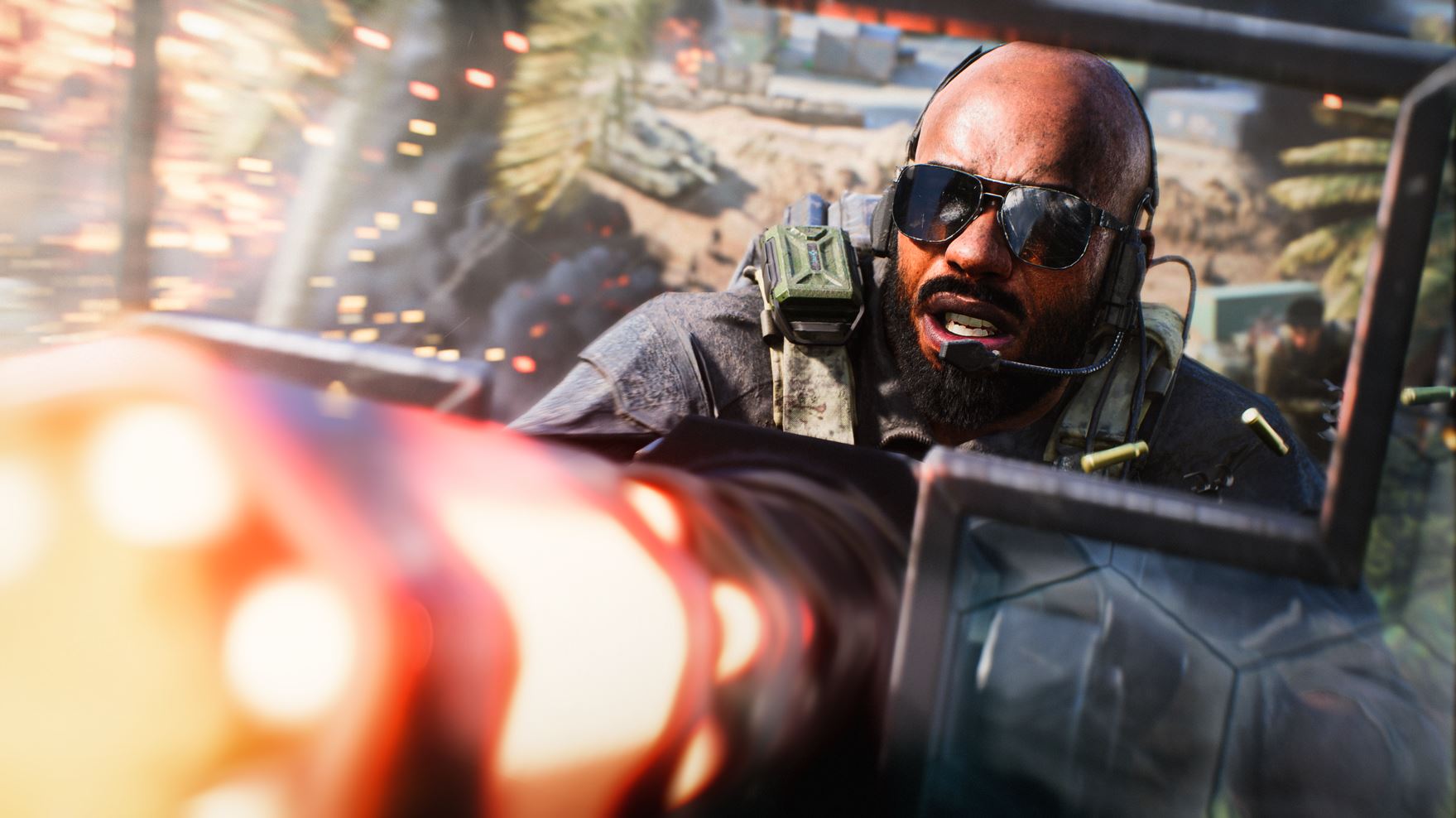
If you want to try Battlefield 2042 for free on PC, your time is running out. You have just over a day to download and play it on Steam before it goes back to being a full-price release.
Battlefield 2042’s free access period on Steam began on March 13, about two weeks after the start of Season 4: Eleventh Hour. If you go to its store page on Steam, you can download and play it for free until 12 p.m. ET on March 16. The game is also discounted on Steam during this time, so you can pick Battlefield 2042 up for $18 instead of $60.
If you don’t want to buy the game directly but still want to continue playing after this free trial period, you have some options. Battlefield 2042 is included in multiple subscription services at the moment. It is one of March 2023’s monthly PlayStation Plus titles for both PS4 and PS5 subscribers. Meanwhile, it’s available as part of the EA Play game library, which Xbox Game Pass Ultimate subscribers on PC, Xbox One, and Xbox Series X/S all have access to.
If you use the same EA account on those platforms, you’ll be able to carry over all of your account progression and items and not lose any progress. As such, this free access period on Steam is a great time to check out Battlefield 2042 if you’ve been on the fence about picking it up.
Battlefield 2042 is available now for PC, PS4, PS5, Xbox One, and Xbox Series X/S. Its free Steam demo ends on March 16.
The best free Nintendo Switch games
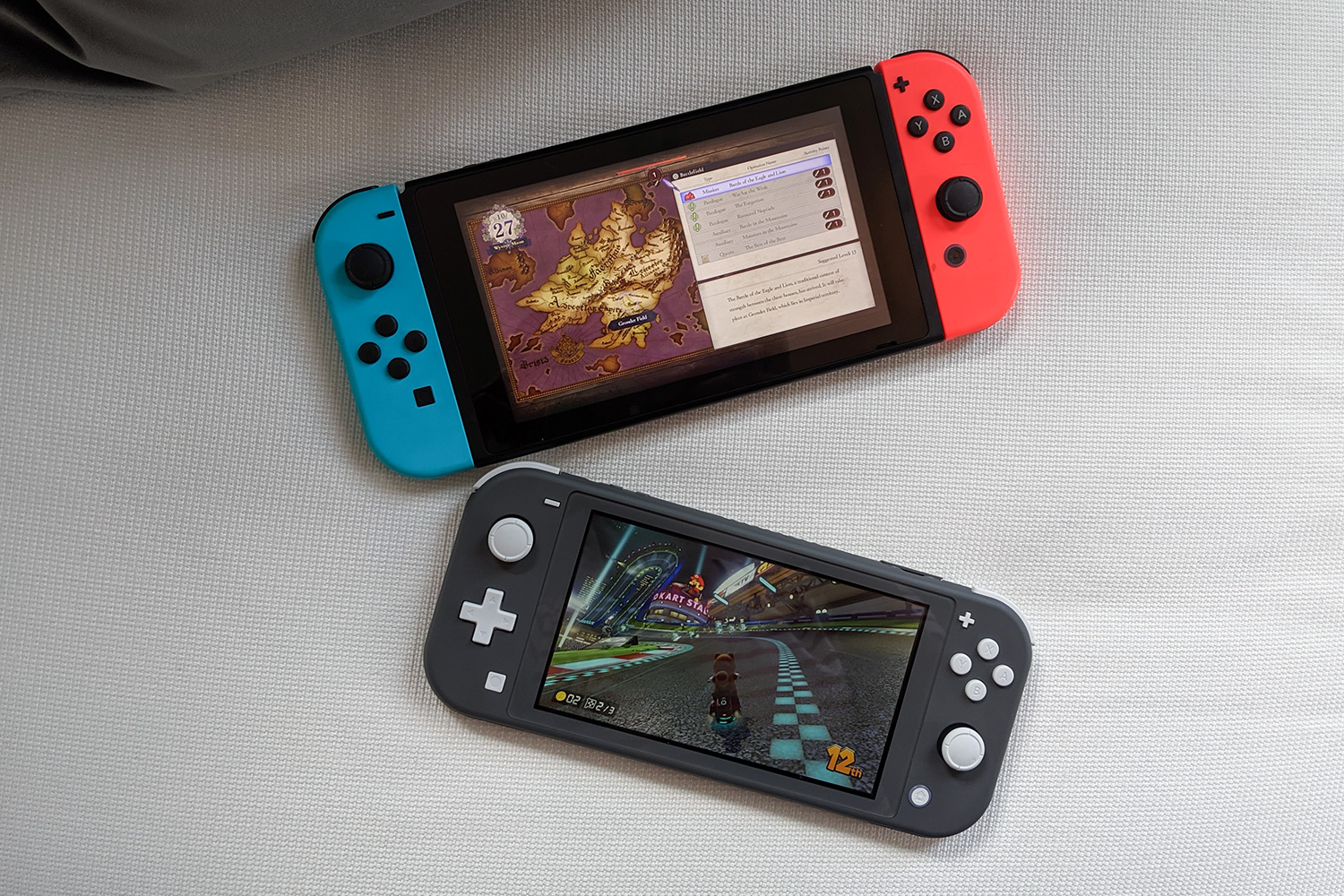
The Nintendo Switch offers an unparalleled gaming experience, allowing you to enjoy games big and small, no matter whether you’re on the couch or on the go. That said, Switch games rarely receive a discount, even if you’re constantly checking for the best Nintendo Switch deals. Our list of the best free Nintendo Switch games is here to help.
We’ve rounded up the top free-to-play games on Nintendo Switch, from Switch Online exclusives like Tetris 99 and Pac-Man 99 to third-party hits like Fortnite and Rocket League.
How to connect your Nintendo Switch to a TV
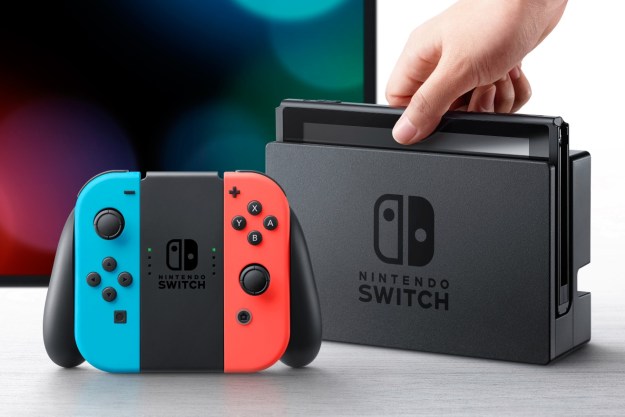
The Nintendo Switch has quickly become a household item. The system works as both a handheld device and a TV console, making it both versatile and convenient for players to use. Although using the Switch in its handheld form is awesome, the reality is that the graphics on a TV can enhance the experience of any Switch player. For those of us that struggle to put systems together, there is hope. Fortunately for us, the Switch is actually pretty easy to hook up to any TV, so long as it has an HDMI slot. Here’s how.
Setting up the Nintendo Switch
For those who are new to the system, every purchase of the Nintendo Switch not only includes the Switch itself but also a Switch dock. This dock will be key in putting your system together for the TV. The first thing you’re going to want to do is take out the dock and all the cords. Make sure that you have the dock, an HDMI cord, and a power cord for the system. If all three are present, you’re good to start!
Read More
Bryan Lawver