

The preferred method of play for shooter and strategy games is to use a mouse and keyboard. However, there are a few instances where having a controller is ideal. Titles such as Immortals Fenyx Rising and Assassin’s Creed Valhalla are more intuitive with a controller. To help, we’ll walk you through connecting your Xbox controller to your PC so you can play Xbox games on Windows. These steps will work for an Xbox One Controller or an Xbox Series X Controller, so no matter your kit, you’ll be playing in no time.
Luckily, Xbox is a Microsoft product, which makes it possible for a Windows computer to support an Xbox controller without too much of a struggle. The plug-and-play support makes it easy to connect your Xbox controller and get started with little to no additional configuration. Not too mention it’s one of the best controllers for PC gaming.
Recommended reading
How to connect an Xbox controller to a PC using a USB
Step 1: Use a USB cable to connect your Xbox controller to your PC.
Step 2: If you have a wireless controller, simply use your charging cable.
Step 3: If you have a wired controller, you can just plug it in like you would with your console.

How to connect an Xbox controller to a PC using a wireless adapter
Step 1: Purchase the Xbox Wireless Adapter.
Step 2: Connect Xbox Wireless Adapter to an open USB port on your PC. Complete the setup process for the adapter as outlined here.
Step 3: Press the Guide button (Xbox logo) on your controller to turn it on.
Step 4: Press and hold the Sync button on top of the controller until the Xbox logo begins flashing (it’s the small button just right of LB).
Step 5: Press and hold the small sync button on the adapter. The Guide button will flash faster while searching for the pair. Once the Xbox logo on the controller stops flashing and turns solid, you’re good to go.
How to connect an Xbox controller to a PC using Bluetooth
Some Xbox controllers have built-in Bluetooth compatibility so you don’t need any wires or adapters to connect. To find out if you can access Bluetooth, look at the logo. On Xbox controllers with Bluetooth, the plastic around the logo will connect to the central controller body. Yes, that’s the way to tell. If this isn’t the case, we’re very sorry, but you’re out of luck.
The good news is that the Xbox One S and Xbox Series S and Xbox Series X all come with Bluetooth-compatible controllers, and the two are sold together. A good rule of thumb is that if you bought your controller in August 2016 or later, it probably has Bluetooth functionality. Check out the images below as an example.
Step 1: Go to Settings on your PC and select Devices.
Step 2: Select the Bluetooth settings option to ensure that your Bluetooth is switched on. Remain on this menu.
Step 3: Push and hold the Guide button and then the Sync button on your controller. You should see the logo start to blink very fast.
Step 4: On your PC, select Add Bluetooth or Other Device, and click Bluetooth. Doing this instructs your PC to search for your controller.
Step 5: After your PC finds your controller and it pops up, choose Xbox Wireless Controller to complete the pairing process.
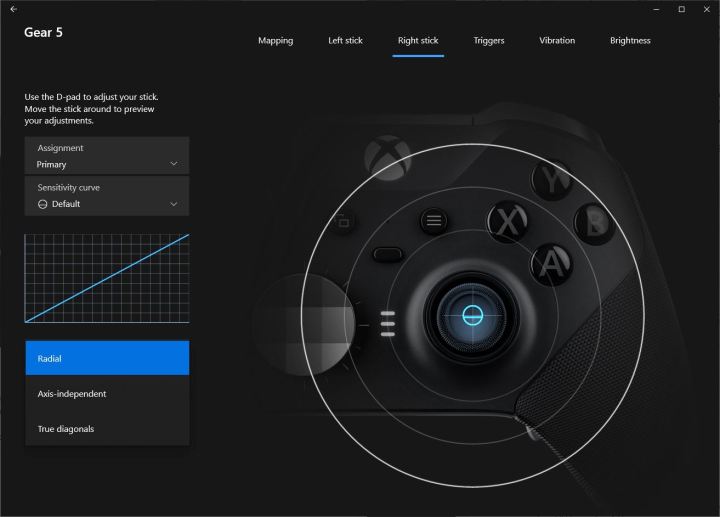
Use the Xbox Accessories app to customize your experience
So you’ve connected your controller, and you’re ready to get gaming. But before you start, you may want to customize your controller through the Xbox Accessories app. You can find this app through the Microsoft Store. It lets you remap buttons, switch out thumbsticks, and much more.
Those who own the heavy-duty Xbox Elite Series 2 controller can also manage all their profiles within the app. Probably the most important part is the ability to update the firmware on your controller. Firmware updates result in a variety of improvements and support for other peripherals. If you notice an update is available, make sure you connect your Xbox controller with a USB cable. Although our team has never run into any issues, some user reports say updating the Xbox Accessories app bricked their controller.

Today’s tech news, curated and condensed for your inbox
Check your inbox!
Please provide a valid email address to continue.
This email address is currently on file. If you are not receiving newsletters, please check your spam folder.
Sorry, an error occurred during subscription. Please try again later.
Editors’ Recommendations
-
This Alienware gaming PC with an RTX 3090 is $520 off right now -
The best gaming PCs for 2023: Dell, Origin, Lenovo, and more -
The best Xbox One controllers for 2023 -
The best OLED laptops for 2023 -
This console generation isn’t about games or hardware. It’s about services
Read More
Steven Petite